Browse help topics
When a sheet does not build
Taxably does not fail quietly. Here is where it tells you something went wrong, and what to do in the common cases.
- Applies to
- Taxably Connect 3.3.9 and later
- Last reviewed
On this page
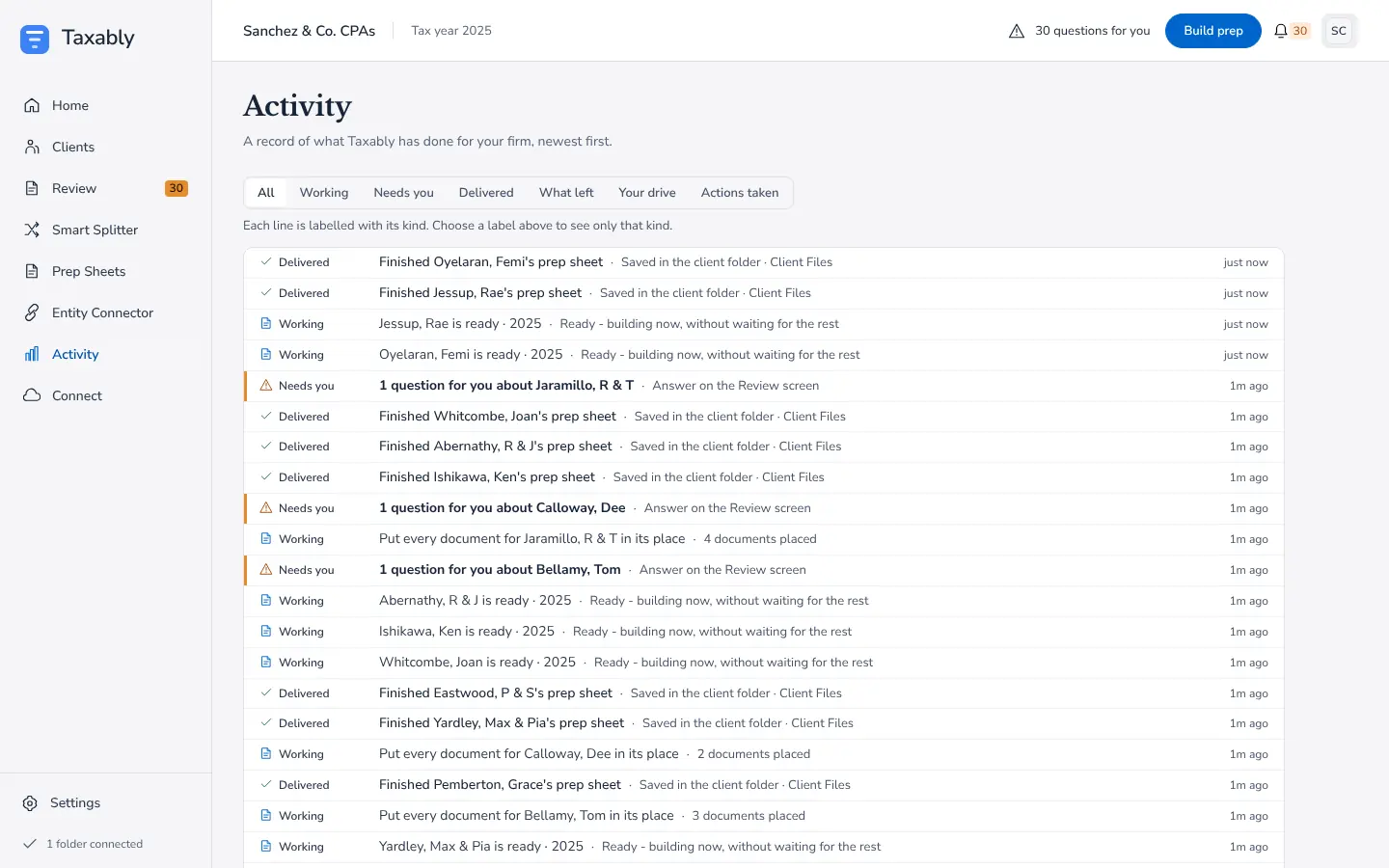
Start on Home. Anything that needs you is a press away, and the Activity screen keeps a running record of what Taxably did and when.
A sheet was not built
Home shows "Sheet not built" for that client, with the reason beside it.
- Read the reason. It says what happened, such as a folder that could not be reached or a build that was stopped.
- Fix the cause, such as reconnecting the drive.
- Press Build again. It opens Build prep with that client ticked.
If nothing could be read for a client, Taxably writes no sheet at all, because an empty sheet would look finished. The reason names the documents that gave nothing.
A client is waiting
A waiting client says what it waits for: documents still settling, with the time it builds, answers on the Review screen, or its place in a build that is running.
A build stopped part way
Sheets already delivered stay, and so does everything read so far. Press Build prep to carry on; documents already read are not read again.
An update has not installed
Updates install after work finishes and the Taxably window is closed. Close the window when you finish for the day, and check Settings, under Updates, the next morning. If it says the update could not finish, Taxably tries again on its own and your work is unchanged. An install for everyone on the computer is updated by hand, by whoever looks after your computers.
Still stuck
In Taxably Connect, open Settings, then About, and press Export a summary for support. It names no client, file or folder, so you can send it as it is. Then contact support.
Related articles
- A document could not be readA document Taxably could not read is never left out quietly. The sheet names it and says what to do; here are the common cases.
- Contact supportEmail support@taxably.ai or send the form on the Help and support page. A summary from Taxably Connect helps us answer faster.
- Build prep sheetsChoose your clients in Build prep, see what the build adds to your bill, and confirm. Taxably reads their documents and writes each client's sheet.
- A tour of SettingsWhat each part of Settings does, and when you would change it. Most firms change one or two things and leave the rest as it starts.
Still stuck?
Email support@taxably.ai, or send your question from Help and support.