Browse help topics
What leaves your computer, and what stays
Your documents, records and prep sheets stay on your computer. Each document's pages go from there to the reading provider to be read, and our servers are not on that path.
- Applies to
- Taxably Connect 3.3.9 and later
- Last reviewed
What stays on your computer
- Your client folders and every document in them.
- Your records: everything Taxably has read, kept on this computer apart from your client folders.
- Your answers to Taxably's questions. A password you give for a locked file is used and never saved.
- The prep sheets, saved in each client's own folder.
What leaves it
To be read, each document's pages go straight from this computer to the reading provider named on our subprocessor list, at its United States locations. The provider is not permitted to train on them. Under its standard terms it can keep content it flags for abuse monitoring for up to 90 days, unless an applicable agreement applies. Our servers are not on that path.
Your Taxably account receives what your bill depends on: that a client's sheet for a tax year was delivered, under a reference that carries no client name. It also receives the checks that keep this computer linked, and optional usage and problem reports. You can turn the reports off in Settings, under Privacy & alerts, where Taxably also lists what is sent either way.
If you connect an AI assistant, what it is told reaches the company that runs it. See Connect your AI assistant.
See it for yourself
- The Privacy screen in Taxably Connect names who reads your pages, from the settings this computer actually uses.
- The Activity screen lists what was sent to be read, under What left.
Privacy
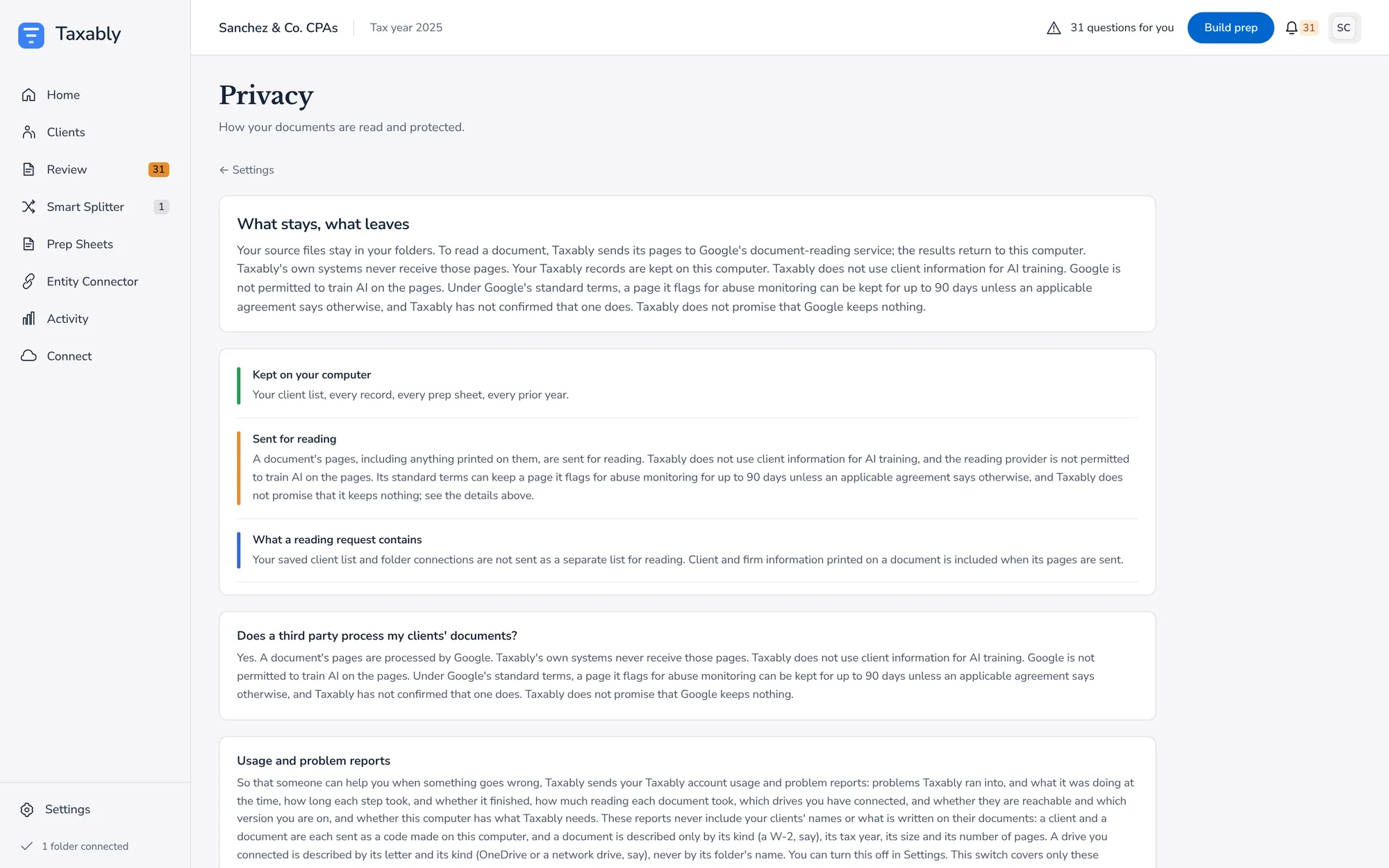
Who reads your pages.
What left
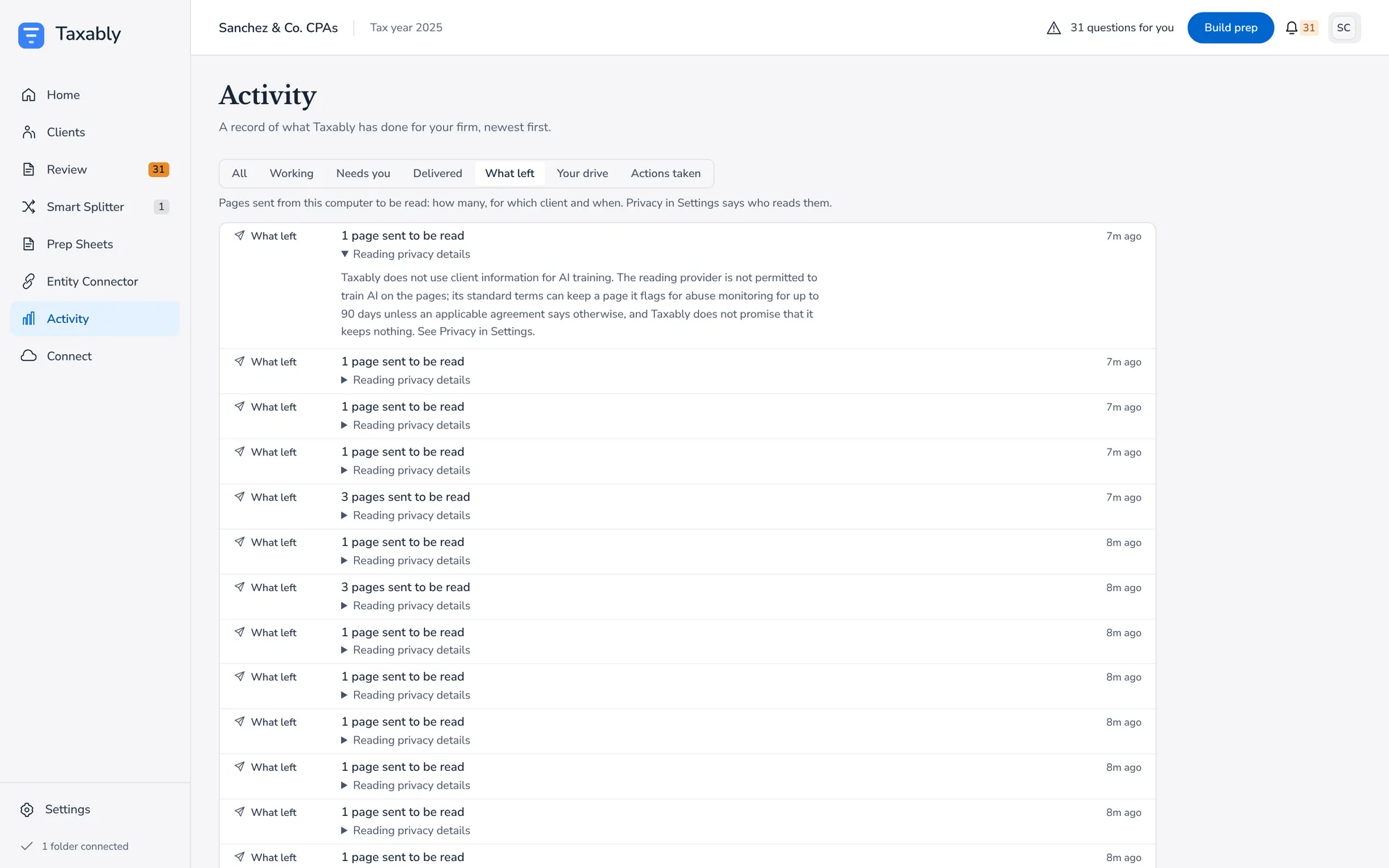
Every page sent to be read.
If a client or a reviewer asks whether a third party processes pages, the answer is yes, under the provider terms named there.
Related articles
- Your records on this computer, and ResetEvery build leaves a record of what Taxably read, kept on this computer. Reset starts Taxably over, and says what it removes and keeps before you press it.
- Connect your AI assistantLet an AI assistant on the same computer, such as the Claude desktop app, answer questions about your built clients and suggest what to do next. Nothing changes until you approve it.
- Work from a shared or synced driveTaxably reads client folders on a network drive or in a cloud storage folder the same way as local ones, and copies only what a build needs to this computer.
- Contact supportEmail support@taxably.ai or send the form on the Help and support page. A summary from Taxably Connect helps us answer faster.
Still stuck?
Email support@taxably.ai, or send your question from Help and support.