Browse help topics
Install Taxably Connect and link this computer
Taxably Connect runs on the Windows computer that can open your client folders. Install it, sign in once, and that computer is linked to your firm.
- Applies to
- Taxably Connect 3.3.9 and later
- Last reviewed
On this page
What you need
- A computer running Windows 10 (21H2 or newer) or Windows 11, 64-bit, with at least 8 GB of memory.
- Room on a fast local drive for Taxably's records. Setup will not continue with less than 20 GB free there.
- Access from that computer to your client folders, whether they sit on it, on a network drive or in a storage app's folder.
- Your firm's owner or an admin, to link the computer.
Install
- Sign in to your account at app.taxably.ai and download Taxably Connect.
- Run the installer. The standard install is for your own Windows account and needs no administrator.
- When Setup asks where to keep Taxably's records, choose a local drive with room to spare.
Installed this way, Taxably starts when you sign in to Windows, keeps working in the notification area with its window closed, and installs its own updates when it is idle.
Link this computer
- Open Taxably Connect and press Sign in to Taxably.
- Your browser opens your Taxably account. Sign in, check the firm it names and press Allow.
- Back in Taxably, agree to the terms when you are asked.
- Give your firm its name and, if you like, a logo. Both appear on the cover of every prep sheet.
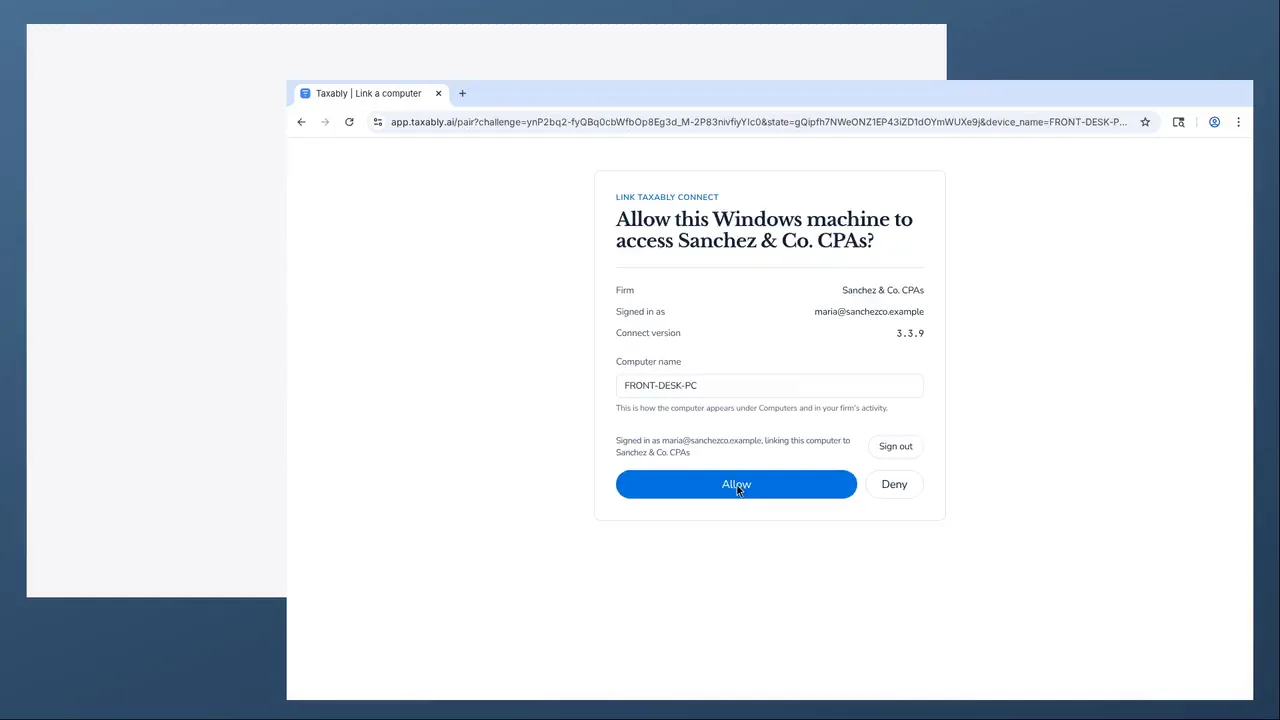
Sign in
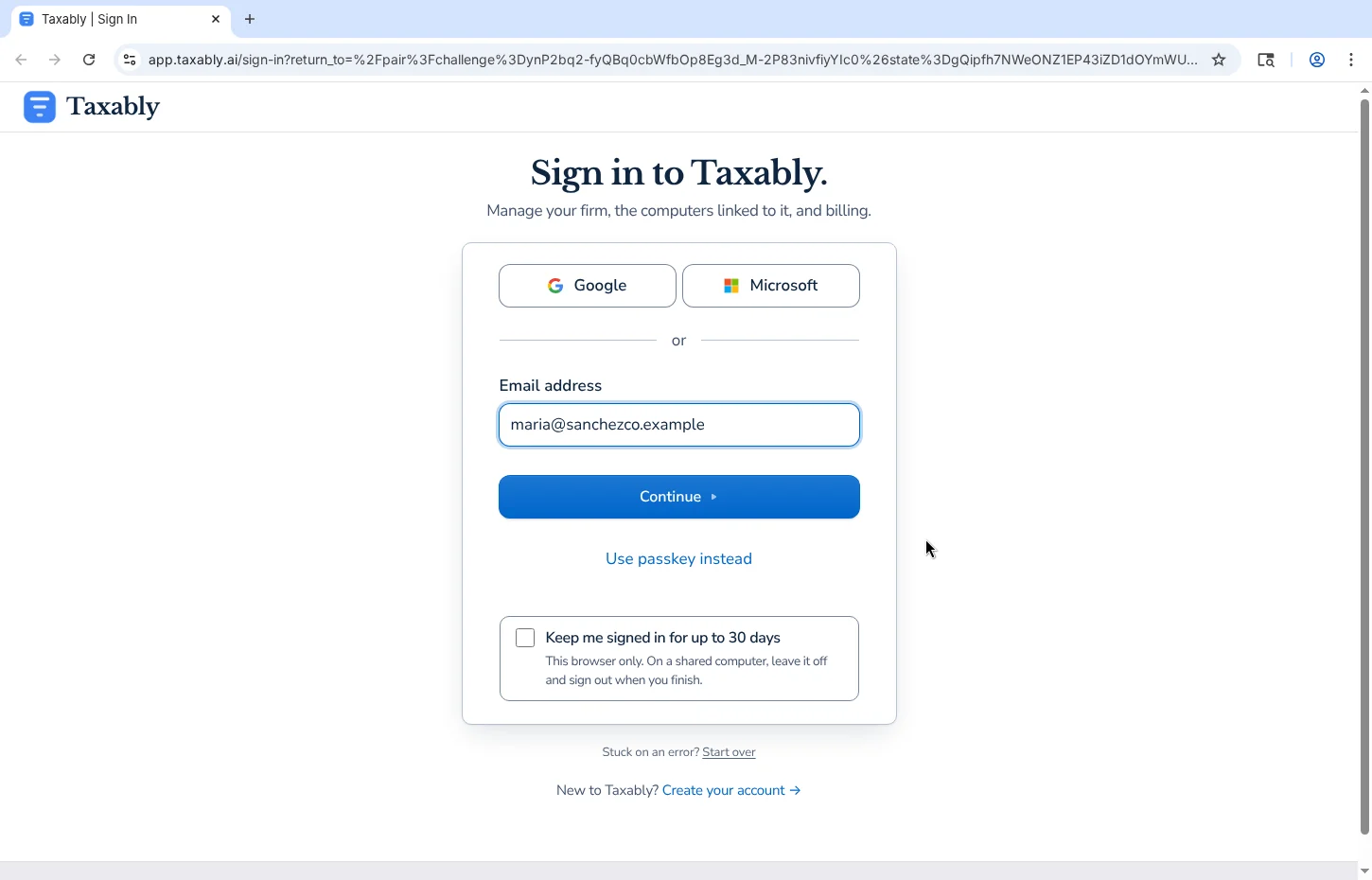
The browser opens your Taxably account.
Allow
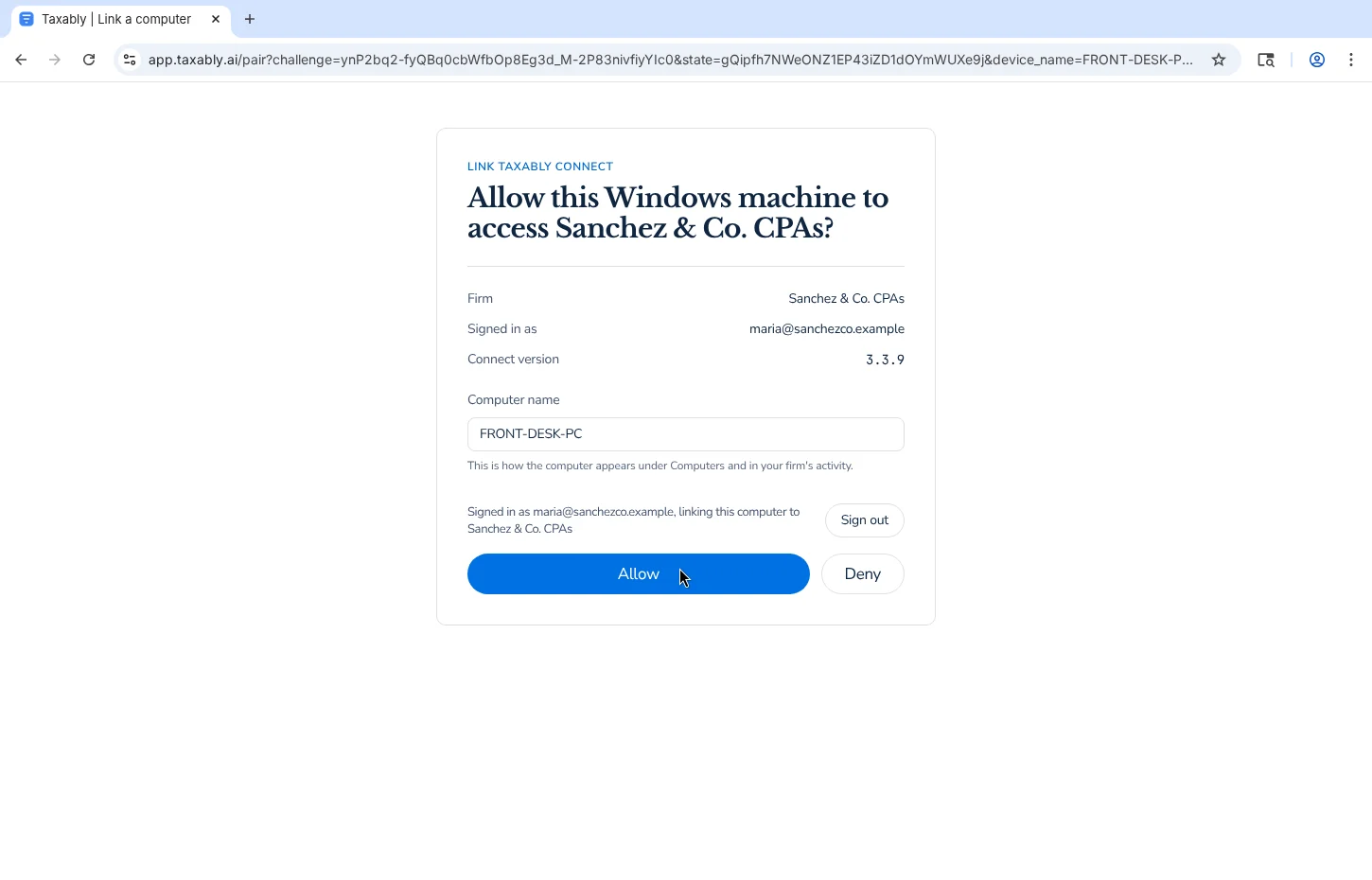
Check the firm, then press Allow.
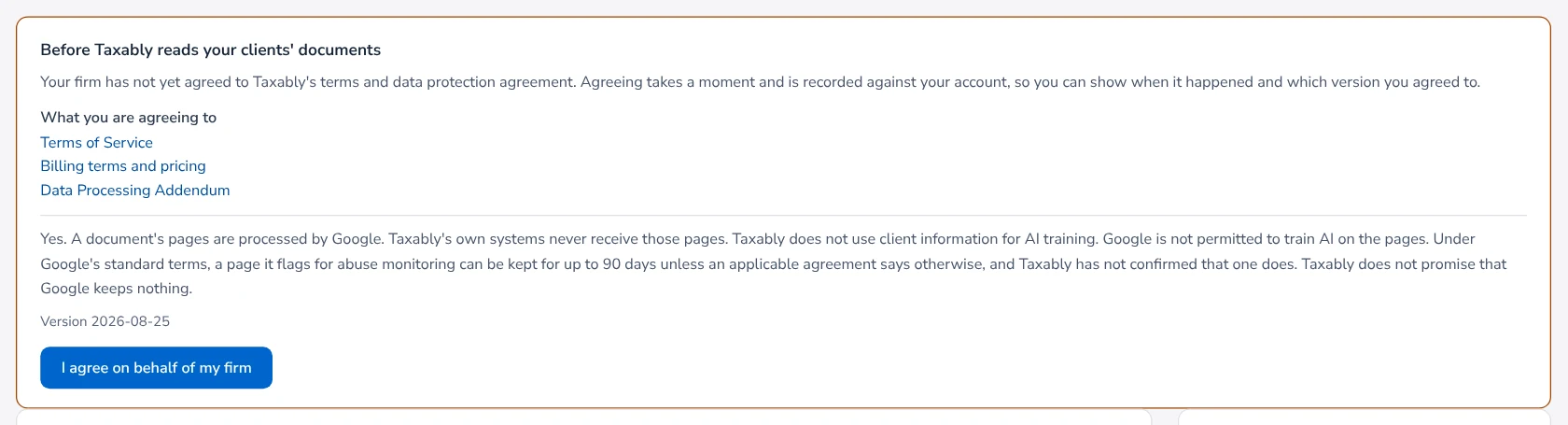
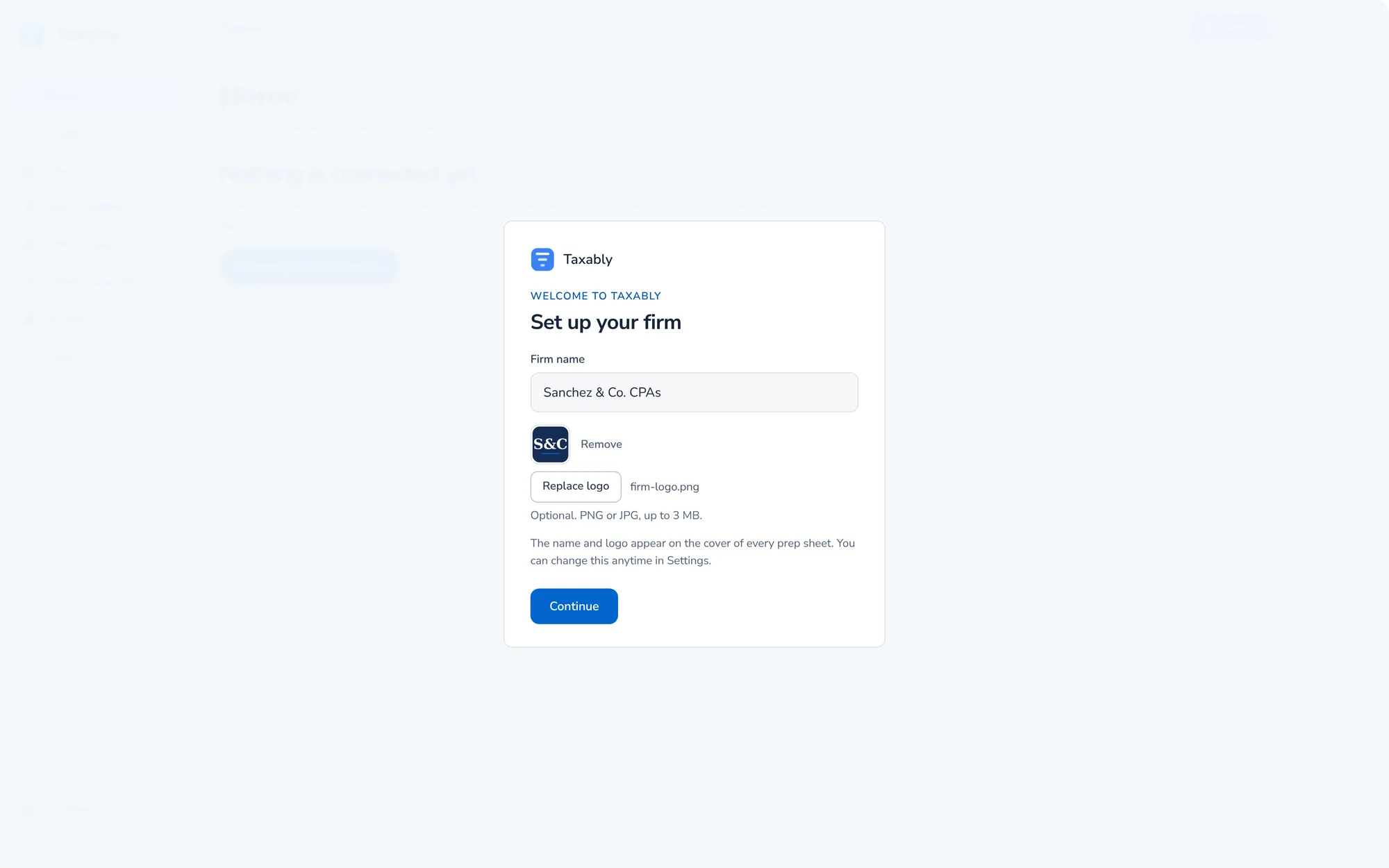
Taxably reads nothing until this computer is linked and the terms are agreed. If you skipped the sign-in, open Settings, then Your Taxably account, and press Link this computer.
Related articles
- Your first hour with TaxablyConnect the folder that holds your clients, build a few prep sheets, answer what Taxably asks, then build the rest.
- Connect your client foldersPoint Taxably at the folder that already holds your clients. Nothing moves, nothing is read and nothing is charged.
- Unlink or change computersYour firm links one computer to Taxably at a time. Unlink the old one and link the new one; nothing is deleted from either.
- What leaves your computer, and what staysYour documents, records and prep sheets stay on your computer. Each document's pages go from there to the reading provider to be read, and our servers are not on that path.
Still stuck?
Email support@taxably.ai, or send your question from Help and support.