How it works
From client folders to a finished prep sheet.
A preparer's day with Taxably Connect, one step at a time. It works in the folders your firm already uses and builds one bookmarked PDF per client per tax year, on your own Windows computer.
- 1Connect
Connect your client folders.
Choose the folder that holds your client folders and say that each folder inside it is a client. Taxably lists your clients without reading a document, in SuiteFiles, Canopy, TaxDome, SmartVault, Google Drive, OneDrive, Box, Dropbox, or any folder on your PC.- Each folder inside becomes a client
- Listing your clients reads no documents
- Your files stay where they are, as they are
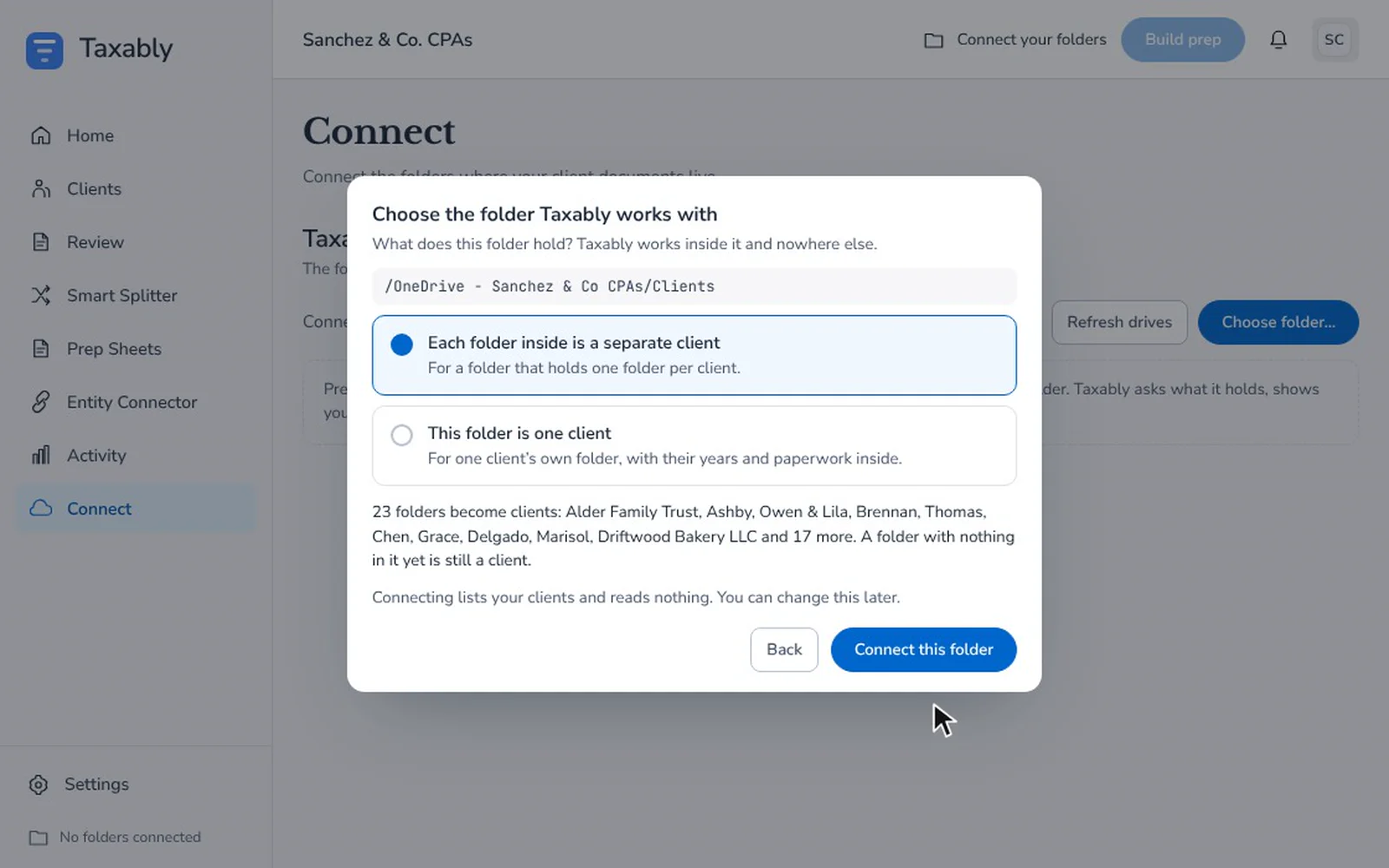
Fictional firm and clients. Screens from Taxably Connect 3.3.9. - 2Build
Build prep sheets when you say.
New documents are read as they land in a client's folder, unless Settings in Taxably Connect is set to read them once a day or only when you start a build. On Manual, which is how Taxably Connect starts, a prep sheet is built or rebuilt only when you ask for one: when you press Build prep, or when you answer the last question Taxably has about that client. On Auto-pilot it is rebuilt without asking, after nothing in the client's folder has changed for 12 hours, or for the shorter wait you choose in Settings.- Build all of your clients, or tick the ones you want
- Prepares last calendar year unless you choose another
- Reads PDFs, scans, photos, spreadsheets and Word files
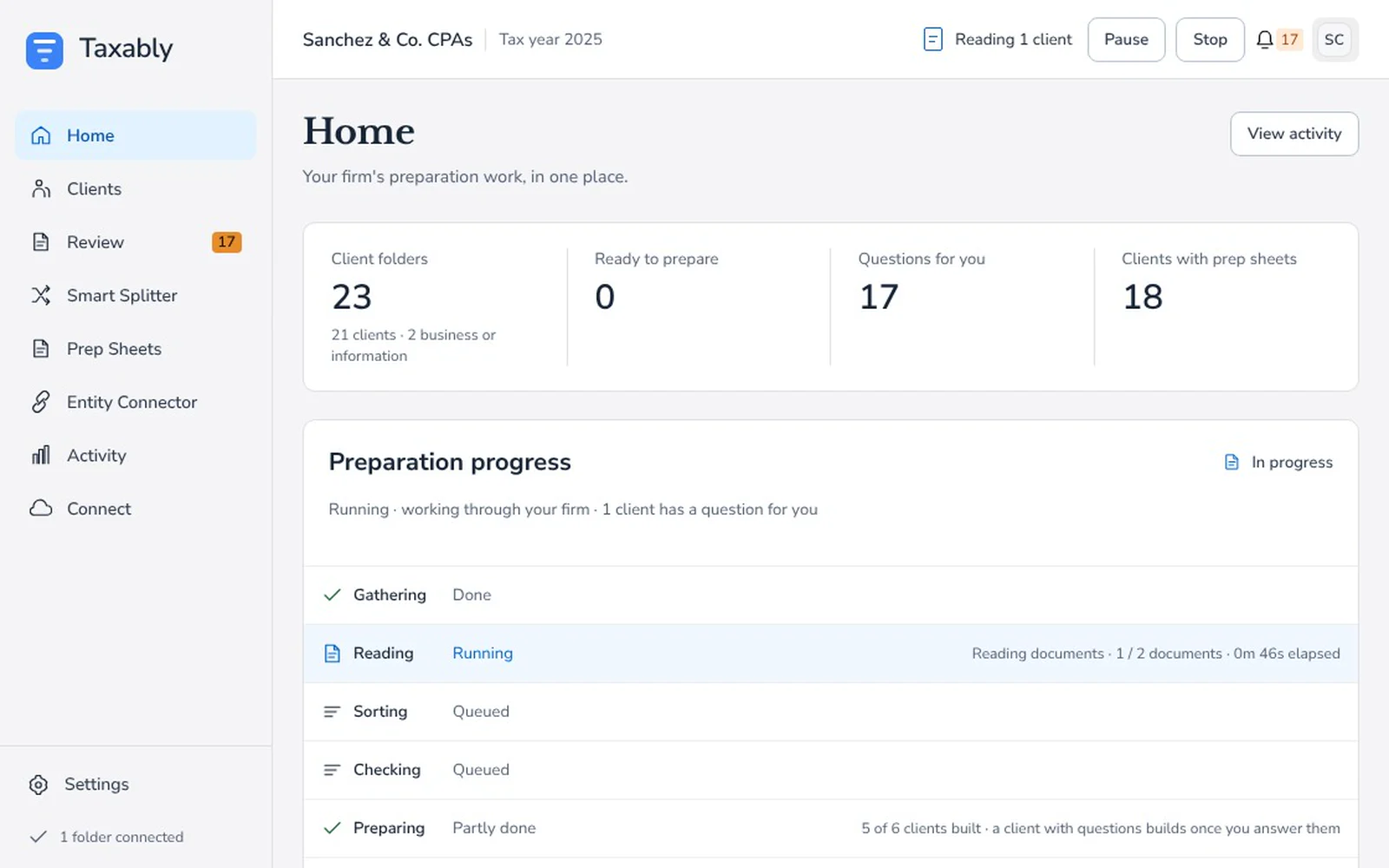
Fictional firm and clients. Screens from Taxably Connect 3.3.9. - 3Review
Answer what the paperwork cannot settle.
Where the documents cannot settle something, Taxably asks you on its Review screen. Each question names the document, says why it is asking, and offers its answers. Your answer is kept for the next build.- A locked file asks for its password
- Last year's sources are asked about, not assumed
- On Manual, answering a client's last question builds its sheet
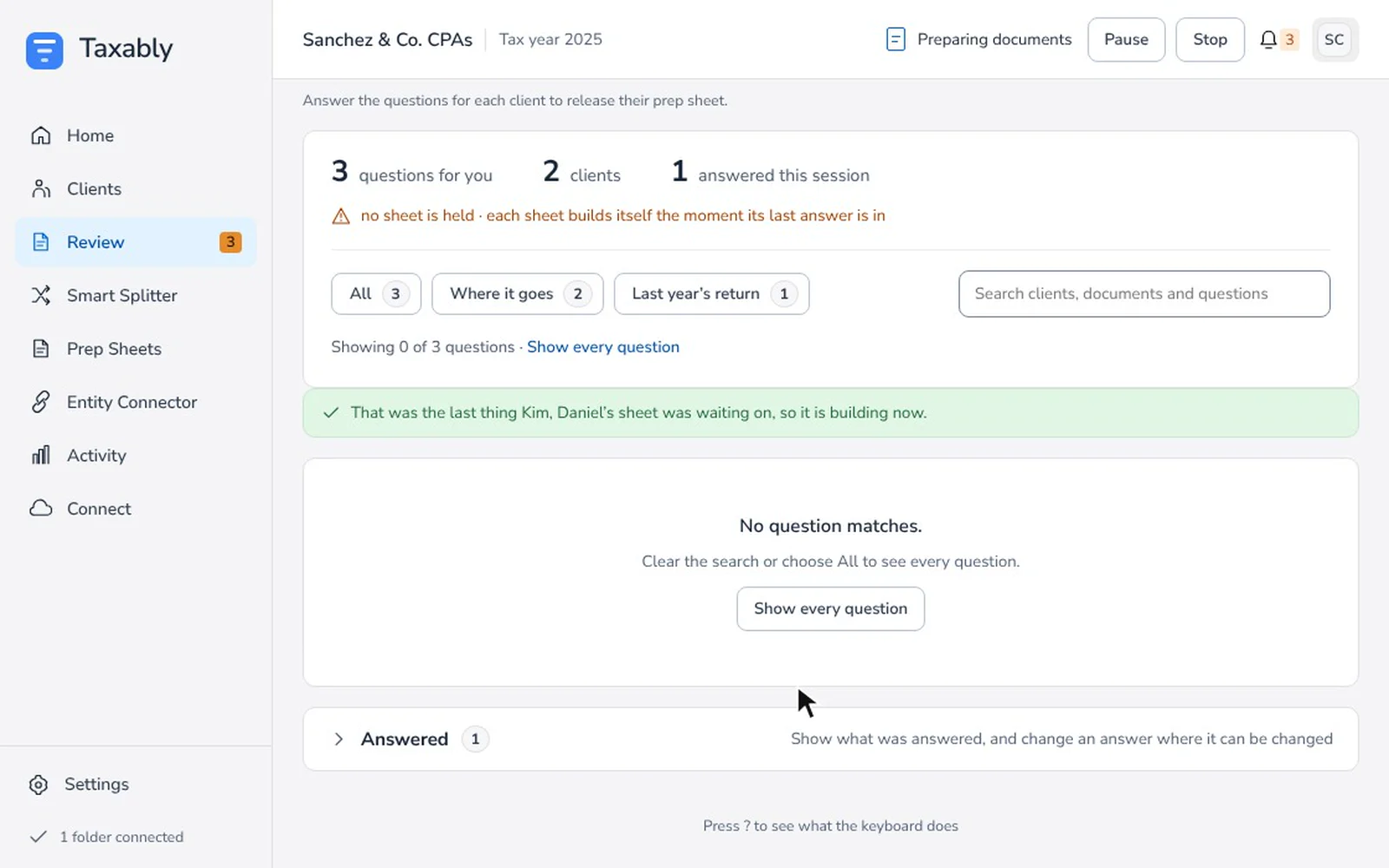
Fictional firm and clients. Screens from Taxably Connect 3.3.9. - 4Open the sheet
Open one PDF per client.
Each prep sheet is one bookmarked PDF for a client's tax year: a cover, a contents page, a section for every part of a 1040 in play, and the client's original documents inside it. Here is the shape of one, page by page.- One bookmarked PDF per client per tax year
- A contents page that links to every section
- Every source page embedded as it arrived
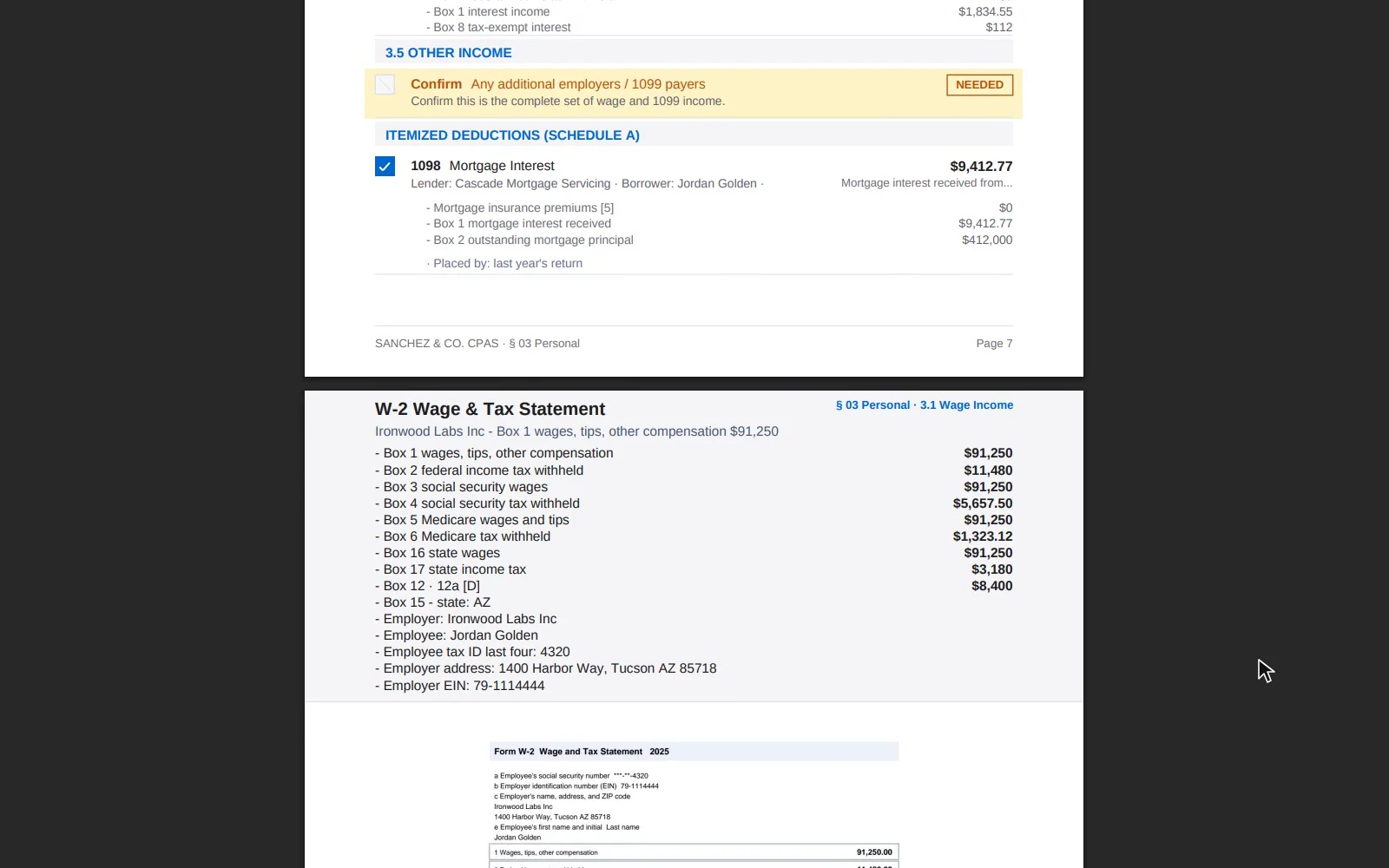
Fictional firm and clients. Screens from Taxably Connect 3.3.9. 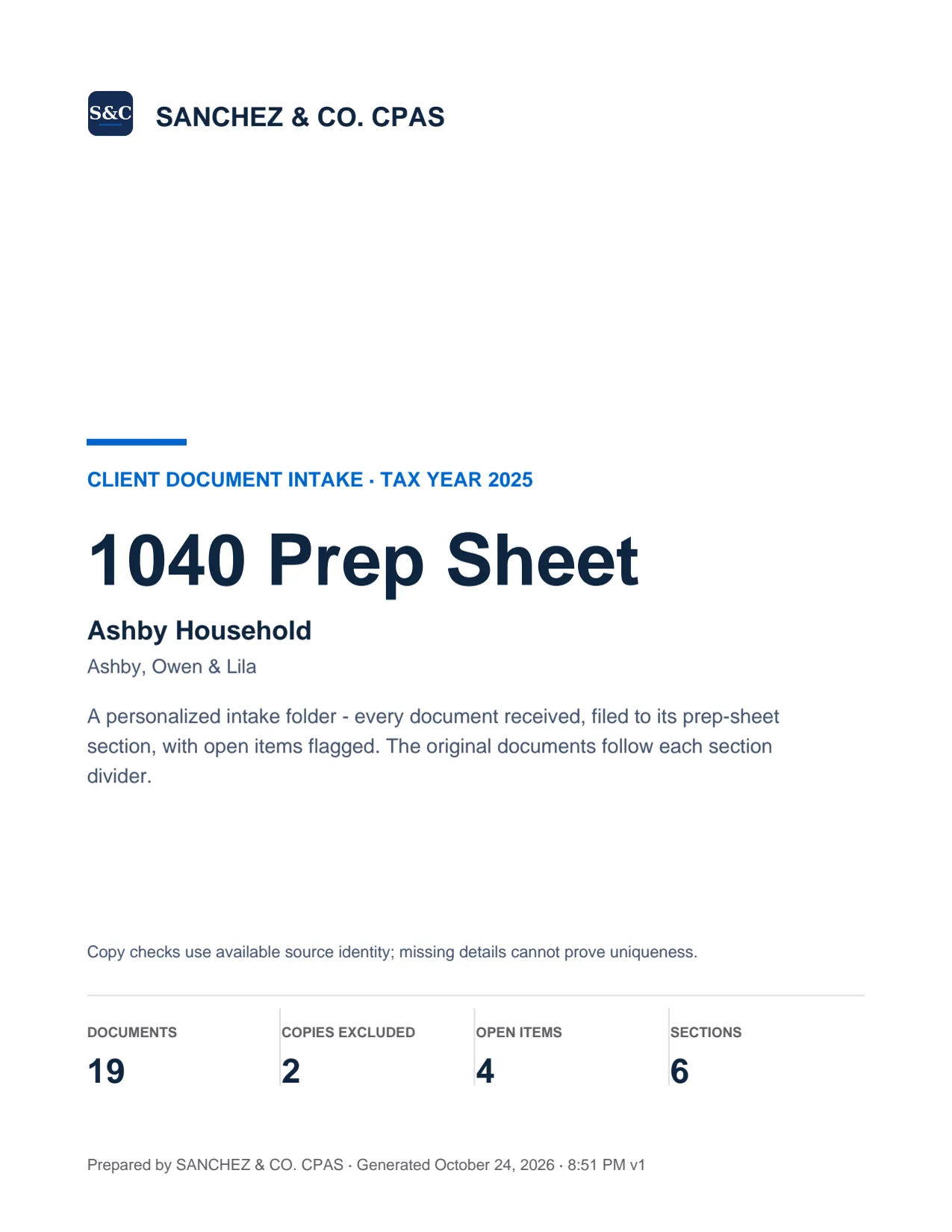
Page 1
Cover
A recap, not a checklist: tax year, document count, copies excluded, open-item count, sections in play, and the filing status once the documents establish it.
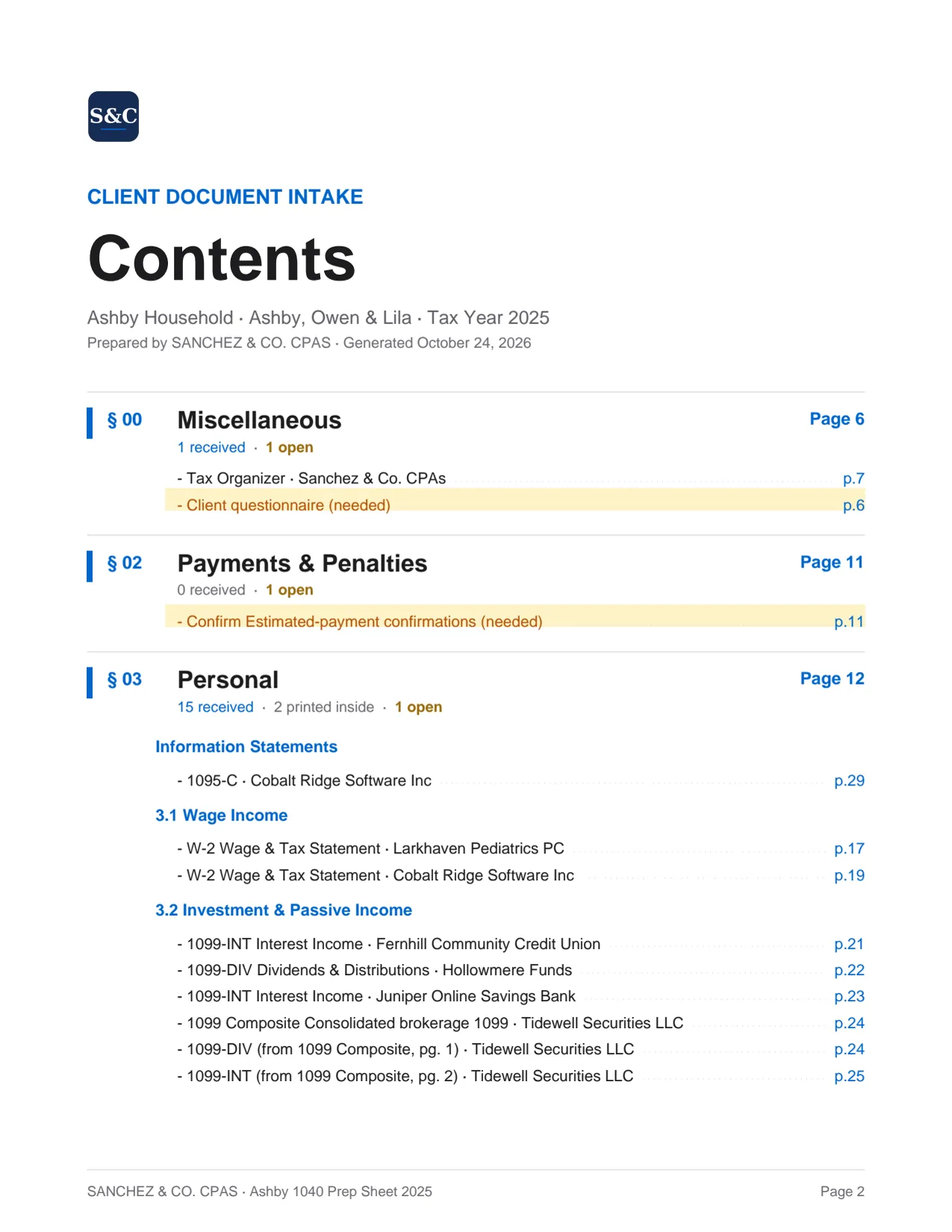
Page 2
Contents
Only the sections this client actually has documents for. Wages-only single filer? Two rows. The contents page is fully clickable in the PDF.
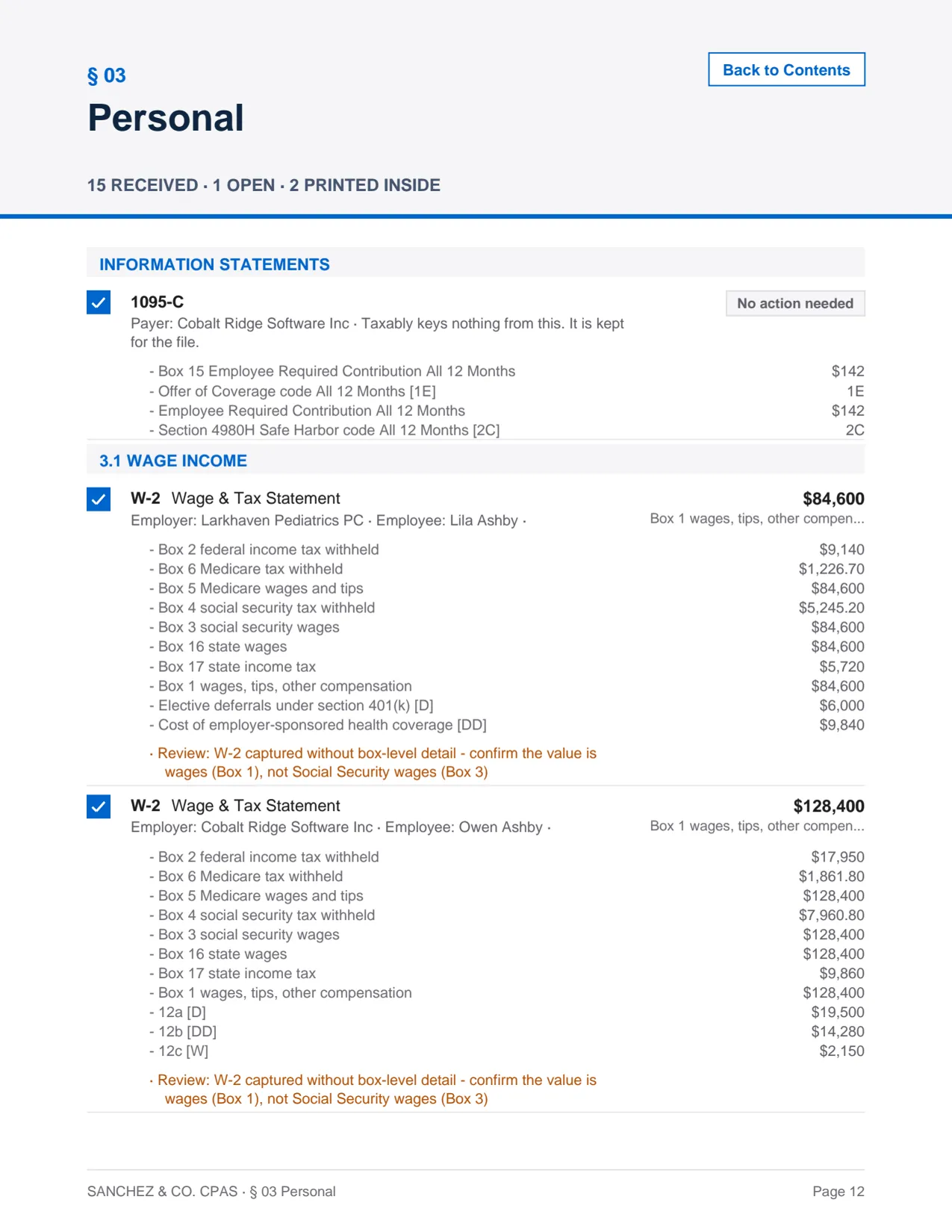
One for every section
Section divider
A status header (X received, Y open), a card for every document received, and a NEEDED card for each document the client's own paperwork points to that has not arrived.
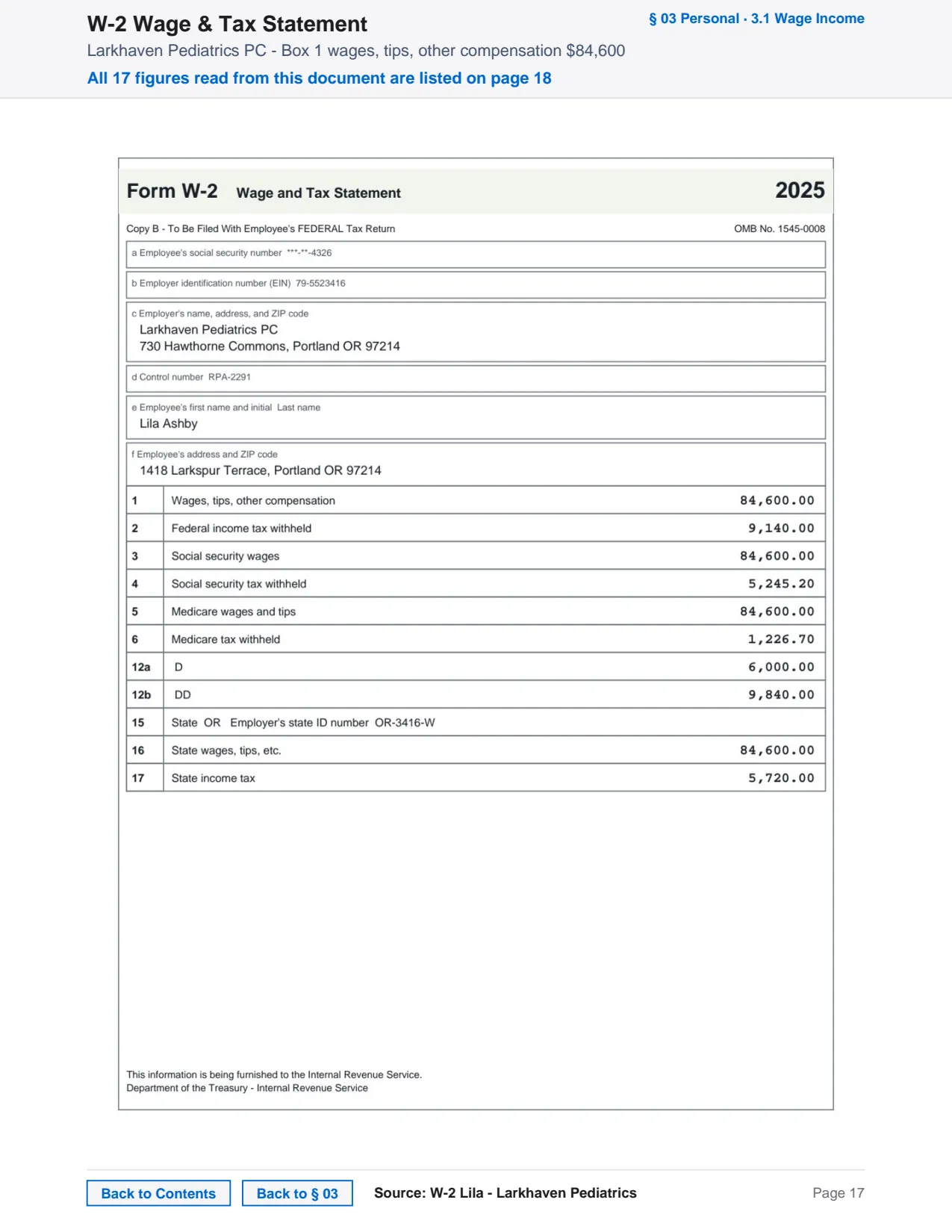
The rest of the PDF
Original documents
Every page of every source document the client sent in, embedded after its section divider, with a footer naming the section and the document.
- 5Trace a figure
Trace any figure to its page.
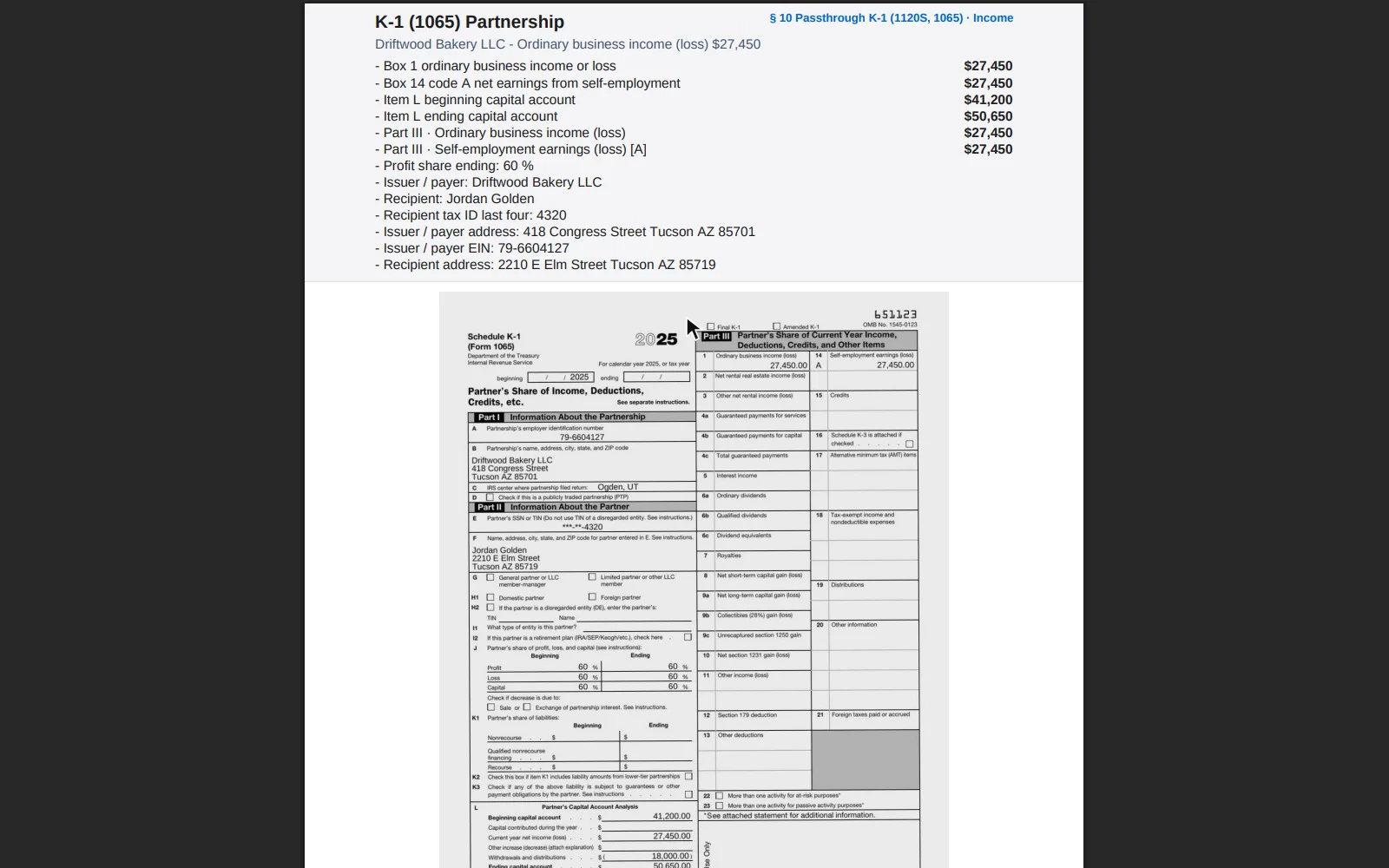
A figure on a section page links to the page of the document it was read from, and every embedded page carries a footer naming its section and its document. Checking a number is one click, not a search through the client's folder.- Click a figure, land on its source page
- Each page's footer names its section and document
- Bookmarks for every section and document
Fictional firm and clients. Screens from Taxably Connect 3.3.9. - 6Saved
Find it in the client's own folder.
Each prep sheet is saved in its client's own folder, in a Taxably Prep folder for the tax year, and there is no setting to save it anywhere else. When a build draws a client's sheet again, the new sheet replaces the earlier one, so keep a copy of any version you send out. While a client's sheet is out of date, unfinished or being built, a short PDF in the same Taxably Prep folder, Taxably - Prep sheet status, says so, and it is removed once a current sheet is saved.- Saved in the client's Taxably Prep folder for the year
- A new build replaces the earlier sheet
- A short status file says when a sheet is out of date
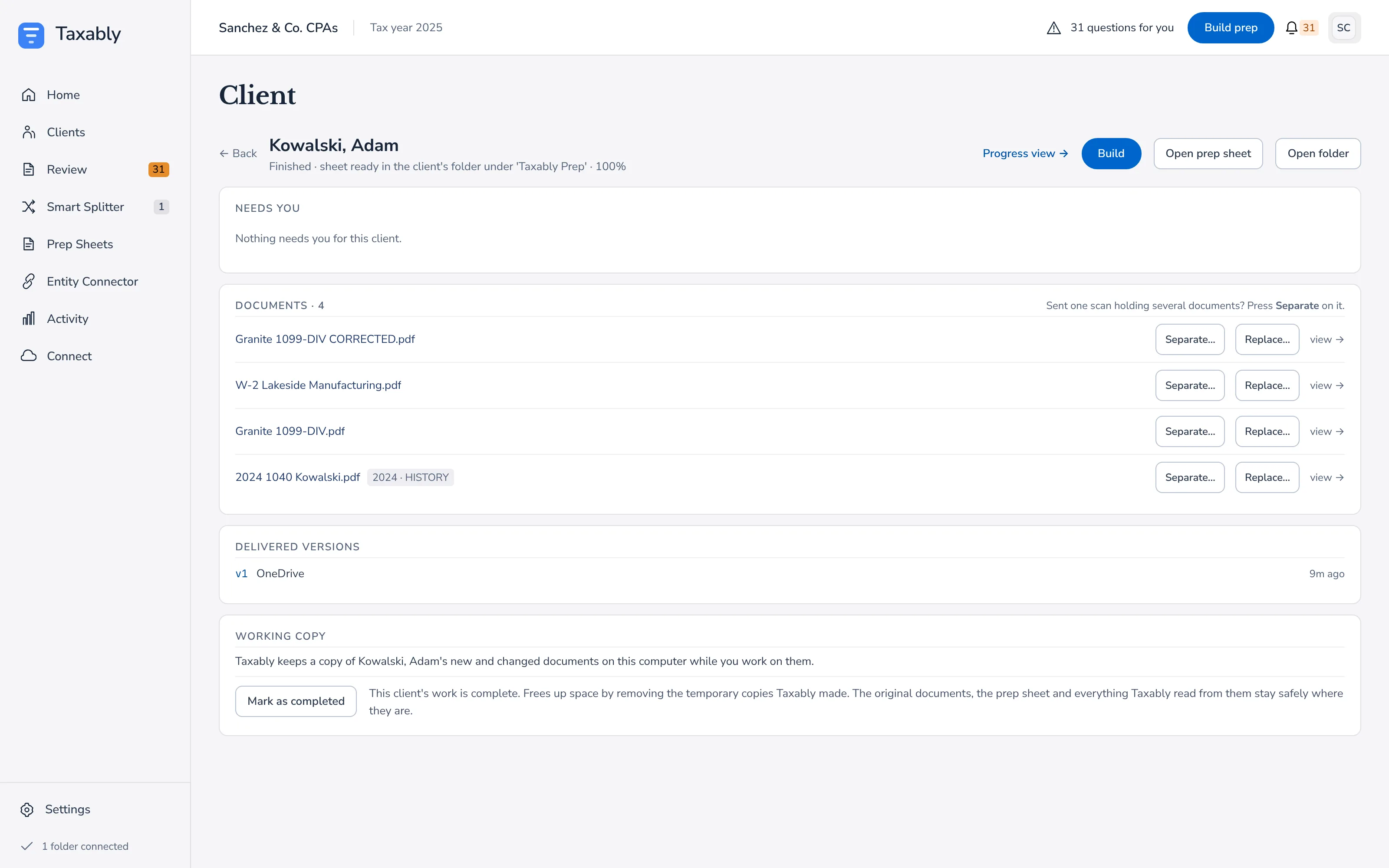
A client's page after a build: the documents Taxably read and the prep sheet it saved in the client's own folder.Fictional firm and clients. Screens from Taxably Connect 3.3.9.
See a real prep sheet.
A fully synthetic demo client (the person, the employers, and every number and address are invented, with no real person behind them) with 19 documents across 6 sections. The same prep sheet a firm sees on its own workstation.
Or watch a prep sheet walkthrough →Or jump to pricing →