Browse help topics
A tour of Settings
What each part of Settings does, and when you would change it. Most firms change one or two things and leave the rest as it starts.
- Applies to
- Taxably Connect 3.3.9 and later
- Last reviewed
Open Settings at the foot of the left rail. Each row says what it does; a row with an arrow opens its own screen.
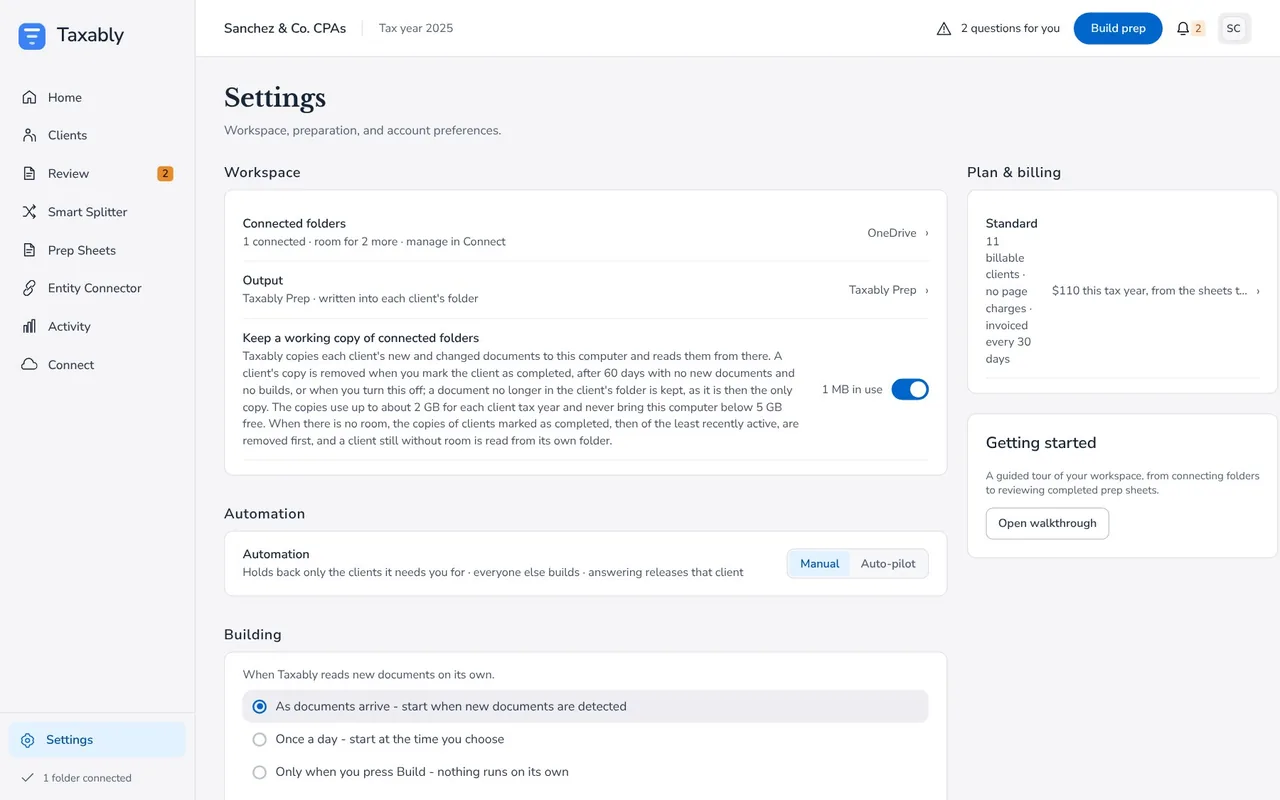
Workspace
- Connected folders. How many folders are connected, managed on the Connect screen.
- Output. Where sheets go: always the client's own folder, in Taxably Prep.
- Keep a working copy of connected folders. On unless you turn it off. Copies each new or changed document to this computer once, so builds over a slow share are quicker. See Work from a shared or synced drive.
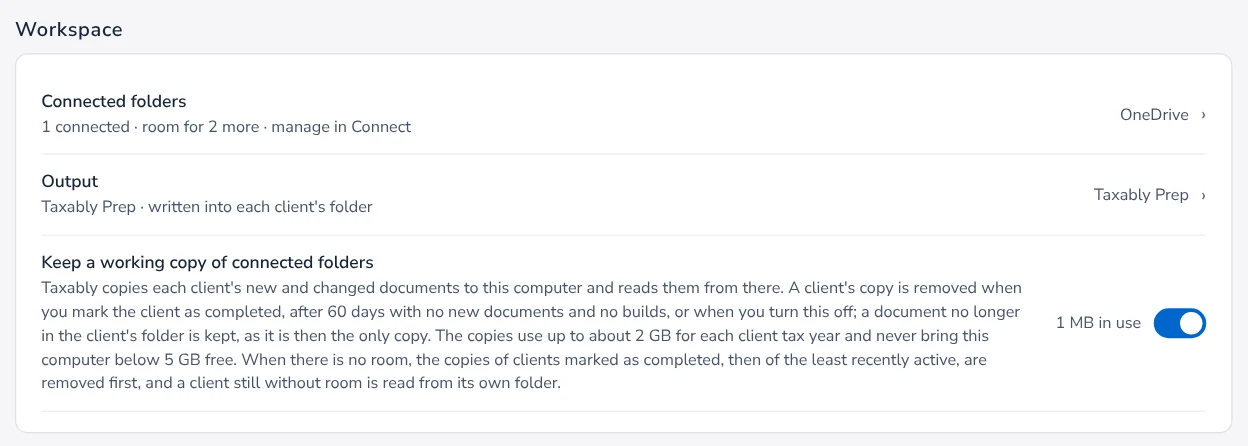
Automation and Building
Manual or Auto-pilot, when Taxably starts on its own, and how long it waits for a client's folder to go quiet. See Manual or Auto-pilot, and when builds start.
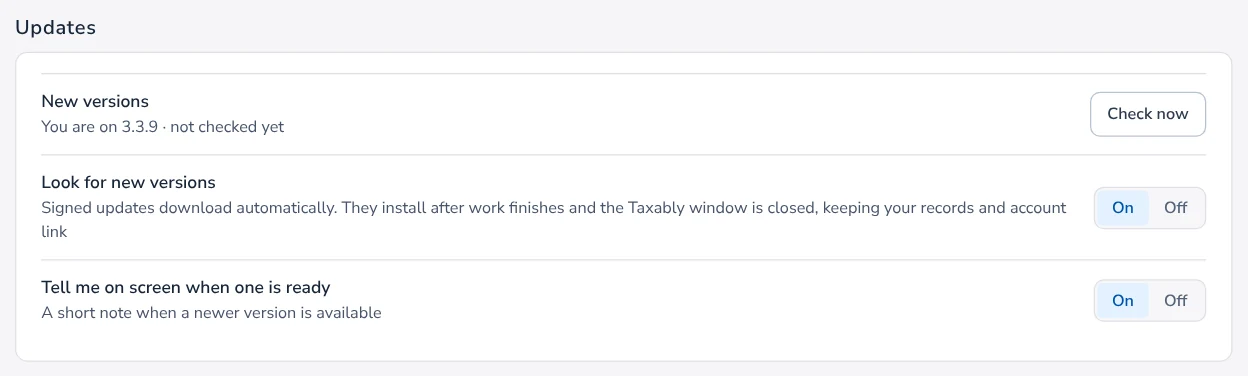
Updates
Signed updates download on their own and install after work finishes and the window is closed, keeping your records and your link. Check now looks straight away. You can also choose to be told on screen when a new version is ready.
Assistants
Your AI assistant: connect an assistant on this computer to ask about built clients. See Connect your AI assistant.

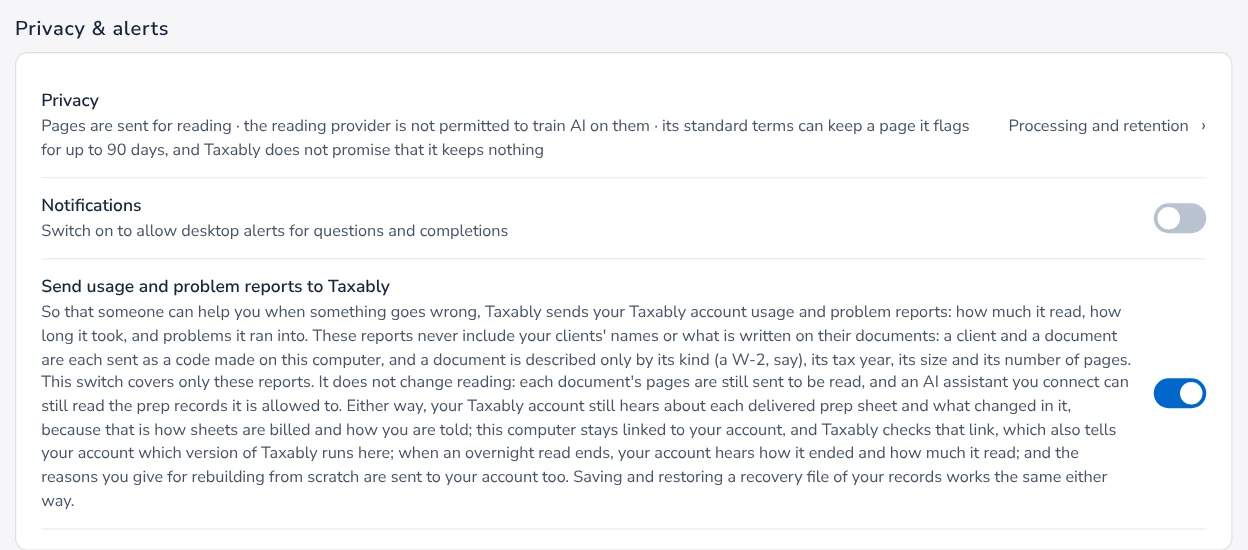
Privacy & alerts
- Privacy. Who reads your pages, said from the settings this computer actually uses.
- Notifications. Desktop alerts for questions and finished sheets.
- Send usage and problem reports to Taxably. On unless you turn it off. The row names what is sent either way, such as each delivered sheet, which your bill depends on.
Controls
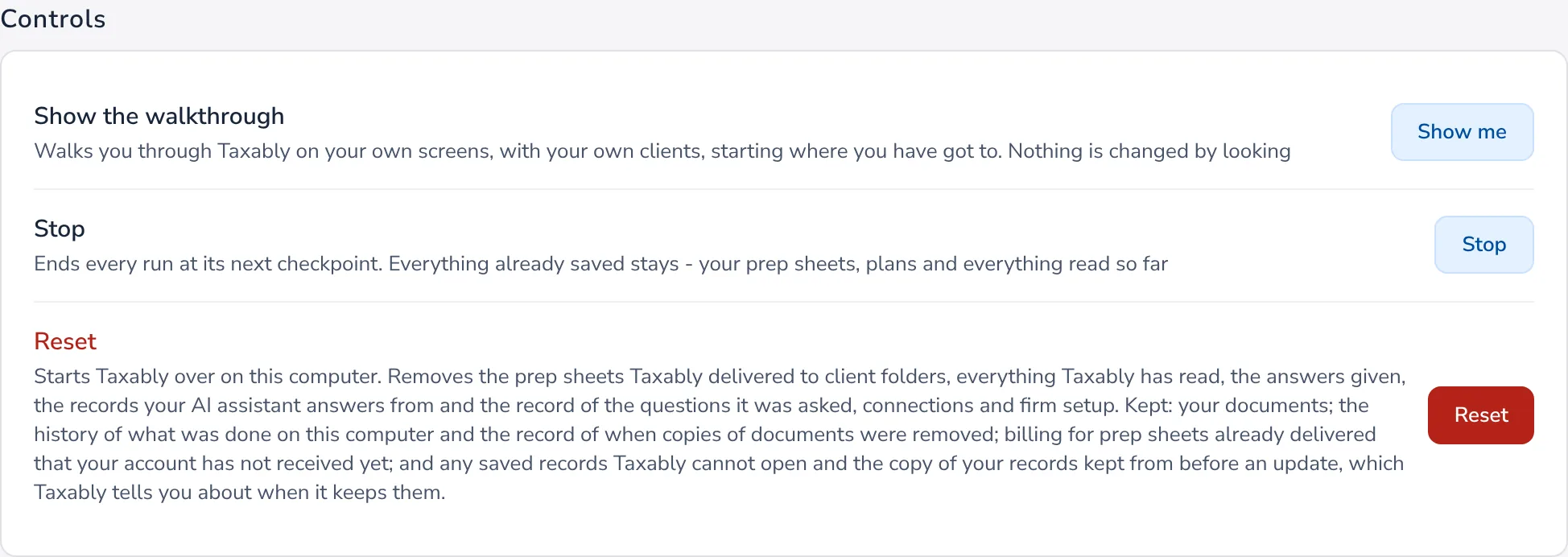
- Show the walkthrough. Points at the main presses on your own screens. Looking changes nothing.
- Stop. Ends every run at its next checkpoint. Everything already saved stays.
- Reset. Starts Taxably over on this computer. Read Your records on this computer, and Reset first.
Firm
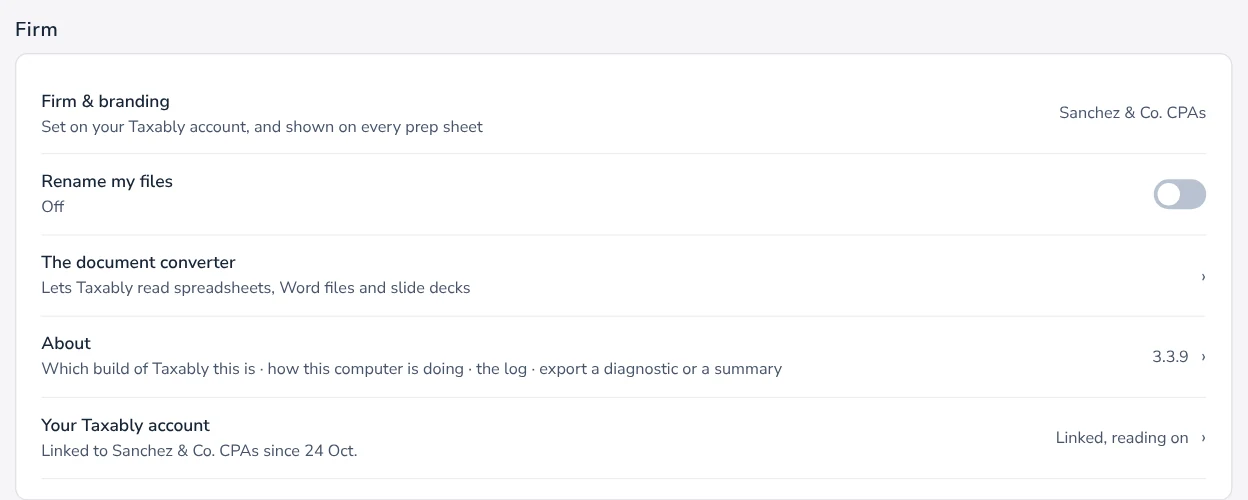
- Firm & branding. The name and logo on every prep sheet's cover.
- Rename my files. Off unless you turn it on. Renames each document on your drive to say what it is, such as the client, year, form and issuer, for clients whose prep sheet was built.
- The document converter. Lets Taxably read spreadsheets, Word files and slide decks.
- About. The version, how this computer is doing, and files for support.
- Your Taxably account. Link or unlink this computer.
Plan & billing, beside the list, shows your plan and what this tax year has used.
Related articles
- Manual or Auto-pilot, and when builds startTwo settings decide when sheets appear. Automation says what happens to a client with open questions; Building says when Taxably starts on its own.
- Connect your AI assistantLet an AI assistant on the same computer, such as the Claude desktop app, answer questions about your built clients and suggest what to do next. Nothing changes until you approve it.
- Your records on this computer, and ResetEvery build leaves a record of what Taxably read, kept on this computer. Reset starts Taxably over, and says what it removes and keeps before you press it.
- Contact supportEmail support@taxably.ai or send the form on the Help and support page. A summary from Taxably Connect helps us answer faster.
Still stuck?
Email support@taxably.ai, or send your question from Help and support.