Browse help topics
Divide a scanned stack with the Smart Splitter
When a client sends one PDF that is really several documents, the Smart Splitter divides it into one file per document, and leaves the original as it was.
- Applies to
- Taxably Connect 3.3.9 and later
- Last reviewed
A W-2, two 1099s and a bank statement scanned as one file is hard to file and hard to check. The Smart Splitter turns it into four documents, each read and filed on its own.
Divide a file
- Open Smart Splitter on the left, or press Separate beside a document on a client's page.
- Choose the file under Files to divide. Blank pages found shows the files where Taxably spotted separator pages; All files shows everything. Every page of the file is shown.
- Divide. Taxably can find blank separator sheets for you. Or mark where each document starts by choosing the gap between two pages, or type the page ranges.
- Name each new document.
- Check and write. The What will happen panel shows exactly what will be written before anything is. When it looks right, write the documents.
- Report. A record of what was divided, with a fingerprint that proves later that the new documents are exactly the pages that arrived.
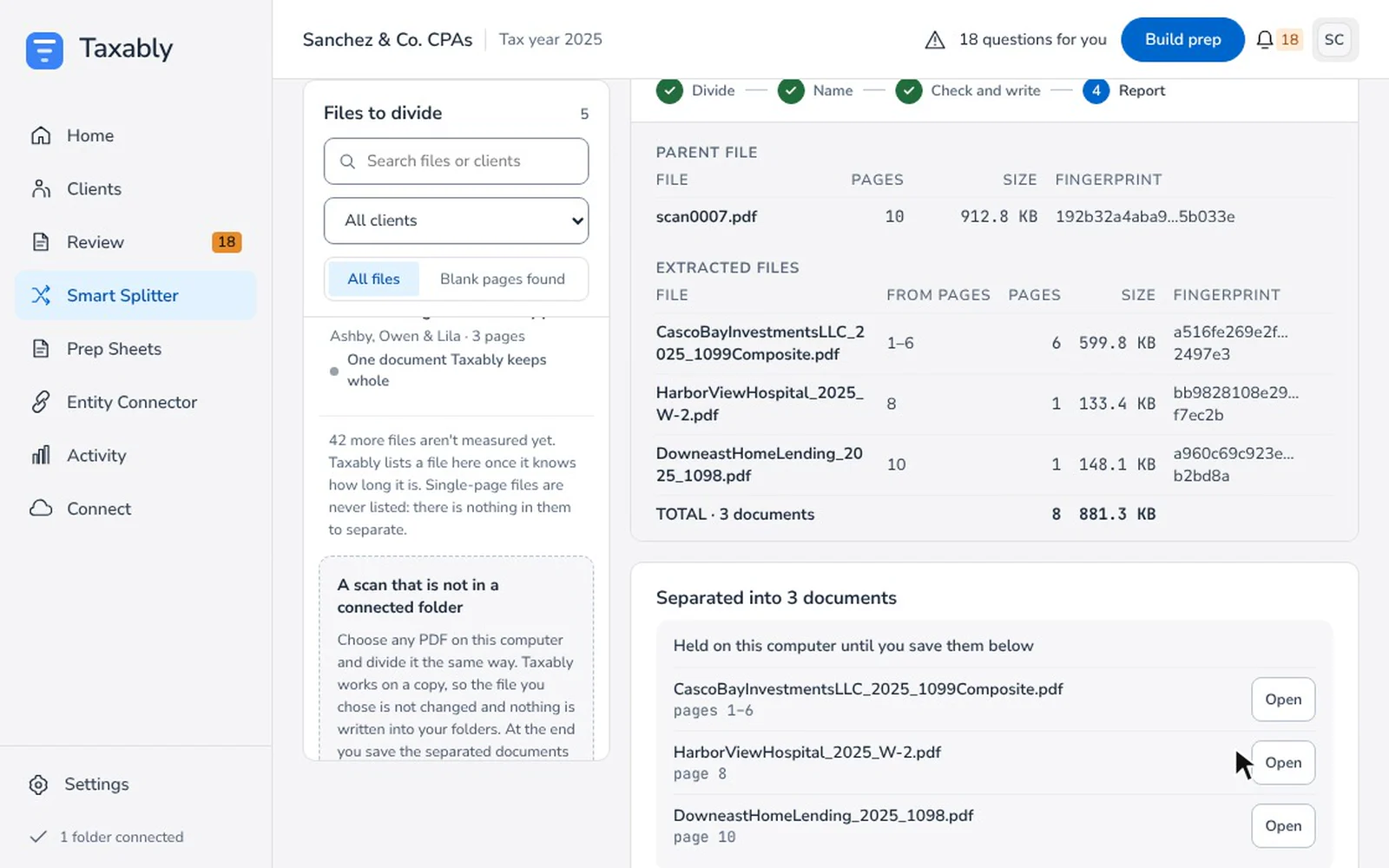
What it writes
The new documents are saved in a Split folder beside the original. The original file is not changed or moved. The next build reads the separated documents, and a prep sheet built before the split says it is out of date until then.
Either every page of the original is used exactly once, or nothing is written and the file stays whole. A file is never partly divided.
A scan from somewhere else
To divide a PDF that is not in a connected folder, choose Choose a file… on the Smart Splitter screen. Taxably works on a copy, writes nothing into your folders, and lets you save the separated documents wherever you like.
Related articles
- A document could not be readA document Taxably could not read is never left out quietly. The sheet names it and says what to do; here are the common cases.
- Build prep sheetsChoose your clients in Build prep, see what the build adds to your bill, and confirm. Taxably reads their documents and writes each client's sheet.
- Read a prep sheetOne PDF per client per tax year, with every document the client sent, filed by section, the figures Taxably read, and what still needs you.
- Work from a shared or synced driveTaxably reads client folders on a network drive or in a cloud storage folder the same way as local ones, and copies only what a build needs to this computer.
Still stuck?
Email support@taxably.ai, or send your question from Help and support.