Browse help topics
Work from a shared or synced drive
Taxably reads client folders on a network drive or in a cloud storage folder the same way as local ones, and copies only what a build needs to this computer.
- Applies to
- Taxably Connect 3.3.9 and later
- Last reviewed
Many firms keep client folders on a network drive, or in the folder OneDrive, Dropbox, Google Drive or a practice app keeps on this computer. Connect that folder the usual way. Your clients and staff keep saving documents there, and the prep sheet is written back into each client's folder, so it travels wherever that folder syncs.
Faster builds on a slow share
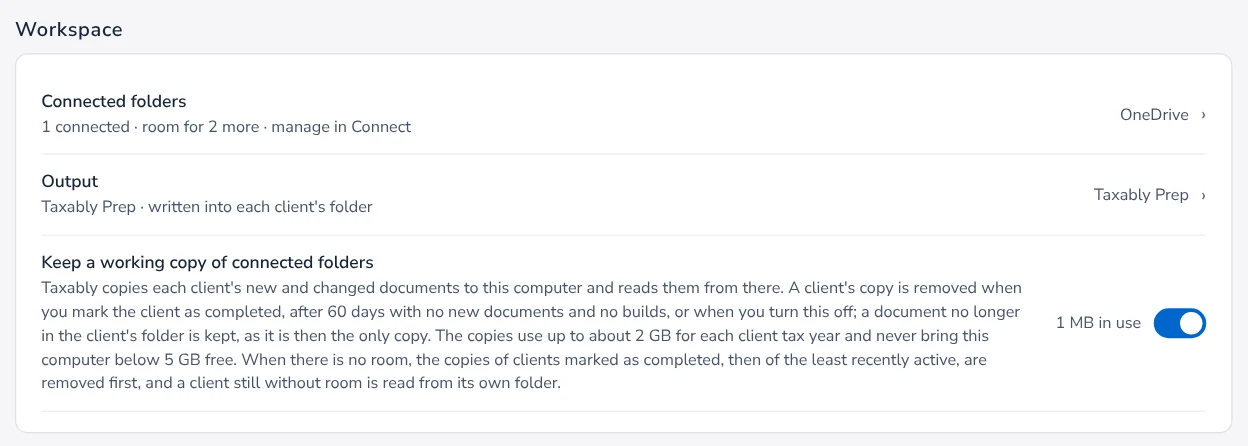
Before it builds a client, Taxably copies that client's new and changed documents to this computer once and reads them from there. An unchanged client reads nothing from the share at all. This is the Keep a working copy of connected folders switch in Settings, under Workspace, and it is on until you turn it off. It never changes your documents.
Before a sheet is saved, Taxably looks at the folder once more. If a document changed, arrived or went in the meantime, it holds the sheet and builds again shortly after, so a sheet never describes files the folder no longer holds.
Files kept online only
A cloud drive can keep a file "online only", a placeholder with nothing on this computer. Taxably does not download it for you. Make the file or folder available on this computer in your storage app, then build again.
When the drive goes away
If a network drive or cloud folder is not reachable, Taxably waits for it. It never reads an unreachable folder as empty and never builds a client from an old copy.
Related articles
- Connect your client foldersPoint Taxably at the folder that already holds your clients. Nothing moves, nothing is read and nothing is charged.
- Where prep sheets are saved, and when they updateEach sheet is saved in its client's own folder, in Taxably Prep under the tax year. It is rebuilt when something changes, and only then.
- A document could not be readA document Taxably could not read is never left out quietly. The sheet names it and says what to do; here are the common cases.
- A tour of SettingsWhat each part of Settings does, and when you would change it. Most firms change one or two things and leave the rest as it starts.
Still stuck?
Email support@taxably.ai, or send your question from Help and support.